

 All posts
Why every task gets a picture
Sterling is an AI assistant accountant, and like any good accountant it makes a lot of to-do lists. An account ends up with hundreds of tasks: reconcile the September bank statement, chase overdue invoices, categorise vendor payments. On a busy dashboard, text-only cards blur together fast.
So every task gets its own illustration, generated once when the task is created. They're mnemonic anchors more than decoration. You learn that the card with the domino is your bank rec, and you find it without reading. The picture is always about the kind of work, never your data.
We shipped the first version quickly and it did the job. Then in September we refreshed the brand. The illustrations needed a new style, new colours and (the hard one) real transparency, so text could wrap around them. Rebuilding the pipeline meant finally dealing with things we'd put off, and it taught us a few lessons about building with generative models that apply well beyond pictures of staplers.

Here's where we ended up. V1 was two calls: pick an object, draw it. V2 is six steps, and each one exists because of one of the lessons below.

Lesson 1: Give the model a world, not a task
Ask a model to illustrate "Chase overdue invoices" and you get exactly what you asked for: an invoice with a clock on it. Literal prompts make literal pictures, and a dashboard full of literal pictures is just a dashboard full of invoices.
What worked in V1 was giving the model a story to live inside. We asked it to imagine the task as a Rube Goldberg machine (some ridiculous contraption that chases the invoices for you), then hand us only its single most iconic part. "Chase overdue invoices" became a startled cuckoo bird bursting out of a clock with a reminder note. You'd never get there by asking for "an illustration about overdue invoices".
The world changes the question. It's no longer "what does this task look like?", which has one boring answer, but "what's inside this machine?", which has hundreds of fun ones. It also means every illustration comes from the same place, so hundreds of them still feel like a set.

The brand refresh was a chance to pick a better world. One of office supplies that have taken on impossible jobs: a desk lamp working as a crane, a hole punch that's become a locomotive. It's more us than generic machine parts, and it came with a quality bar built in, which we call the double read. You should recognise both the office supply and the thing it's pretending to be, because the office supply's own parts become the other thing's parts. Lose either reading and the illustration fails.

A couple of tricks made the world pay off. We make the model brainstorm three scenes, each with different supplies in different roles, and only then pick the most distinctive hero across all three. The first idea is usually the obvious one; asking for three and choosing gets you past it. We also steer the world away from accounting clichés: calculators and filing cabinets are banned, and the model can never pick something that literally appears in the task.
It also helps that the model now reads the whole task. Our first version only saw the title and the first 200 characters, so it was often building a world from a headline.
The imagining all happens in that first step. The selector hands the image model a single sentence ("a [adjective] [object] [doing something]"), and the image model's only job is to draw that sentence well.
Lesson 2: Stop waiting for the models to fix it
Our first illustrations were drawn on white, and we faked transparency with a multiply blend mode. It sort of worked. Multiply makes white disappear on a light background, but it also tints everything else by whatever sits underneath. Put one on anything that isn't near-white and the colours go muddy.
It always felt bad, and we knew it. We punted on purpose, though. Image models were improving fast, and it seemed like a safe bet that "give me a transparent PNG" would just start working. Why build a background-removal pipeline for a problem that was about to disappear?
That was a year ago and it still hasn't disappeared. So we stopped waiting and fixed it ourselves.

The fix is an old one: a green screen. We don't ask the model for transparency at all. We ask for a solid background in a colour we know won't appear in the illustration, then cut that colour out ourselves. Our green screen just happens to be pink.
The interesting part is choosing the pink. Since the brand palette is fixed, we know every colour that could turn up in an illustration: the accent, the supporting colours, the neutrals and the outline. So for each of two candidates, Hot Pink and Deep Rose, we measure the distance to the closest of those colours and pick the candidate whose closest colour is furthest away. In practice Hot Pink wins for almost every accent; Deep Rose only takes over when the accent is Medium Purple, which sits a little too close to Hot Pink for comfort.
Those distances are measured in CIELAB rather than RGB, because RGB distance doesn't match what your eyes see. Two colours can be miles apart in RGB and look nearly identical. CIELAB is designed so that a given distance means roughly the same visible difference anywhere in the space, which is exactly the property you want when the question is "could anyone mistake this for the background?"
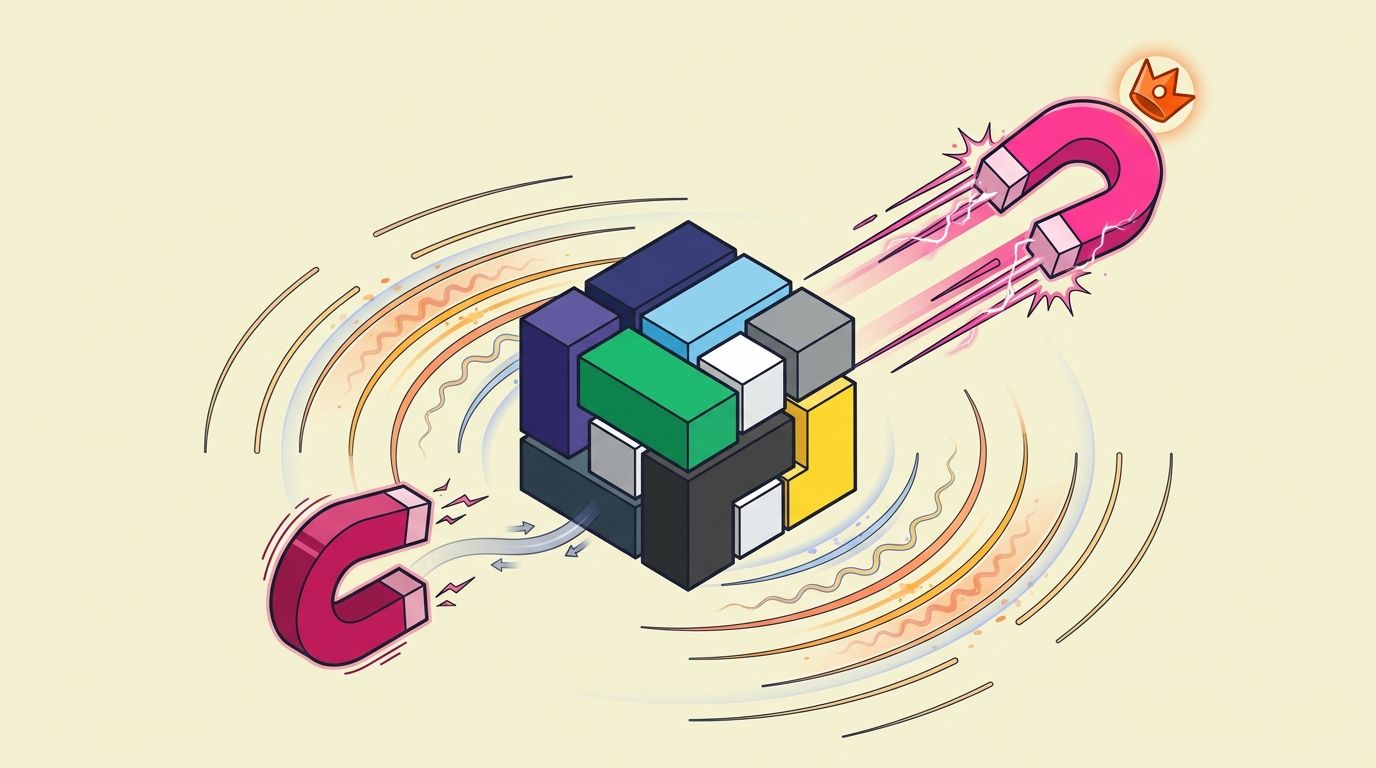
Then we cut it out with libvips, and a couple of details matter here. The model never draws exactly the hex we asked for, so first we measure the pink it actually drew and key against that. Pixels don't flip from background to object in one step either: alpha ramps smoothly with distance from the background colour, which gives you anti-aliased edges instead of a jagged cut-out. We also crop off the white matte some models like to paint around the canvas before any of this happens.

Did I know how to do all of the above? No. I don't even really understand CIELAB or how the anti-aliasing actually works in the code. But we built a harness that allowed me to generate batch after batch so I could identify defects and working with my coding agent to figure out appropriate solutions.
Lesson 3: Let a model check the model
Image models don't always do what they're told. They write "APPROVED" on the stamp when they aren't supposed to write words. They give the stapler eyes when they are meant to avoid faces. They crop the tip of the pen, leave a white framing strip across the top, or draw a stapler that looks like...just a stapler.
So after every generation, another model gets the image plus the original brief (the object, the supply, the intended colour) and answers seven yes/no questions. Is there a frame? Any text? Any faces? Does the background reach every edge? Is anything cropped? Any glitches? And the double read: can you see both things? Structured booleans make it easy to act on, and to count later.

The second half of the idea matters just as much. When a check fails, the model also writes fix instructions ("Remove the text 'APPROVED' from the stamp face") and we hand those to the image model's edit endpoint along with the original image. It's a targeted edit, not a re-roll. A re-roll throws away everything that was right about the image to fix the one thing that was wrong, and there's no guarantee the new one won't have a different problem. Editing keeps the good bits and converges.
We allow three attempts then fail open.
Lesson 4: Capture the shape while you have it
We also had the goal of delivering a more editorial-feeling layout, where the illustration sits in the content and body text flows around the actual stapler instead of around a box. A transparent PNG doesn't get you that by itself; the browser still needs to be told what the shape is.
The moment you know the shape best is right after you've cut it out, so that's when we record it. We walk down the alpha channel, note where the object starts and ends on each row, pad it a little, and store the result as a CSS polygon() for shape-outside. The other edge goes alongside it for a bit of JavaScript that wraps text on the opposite side.
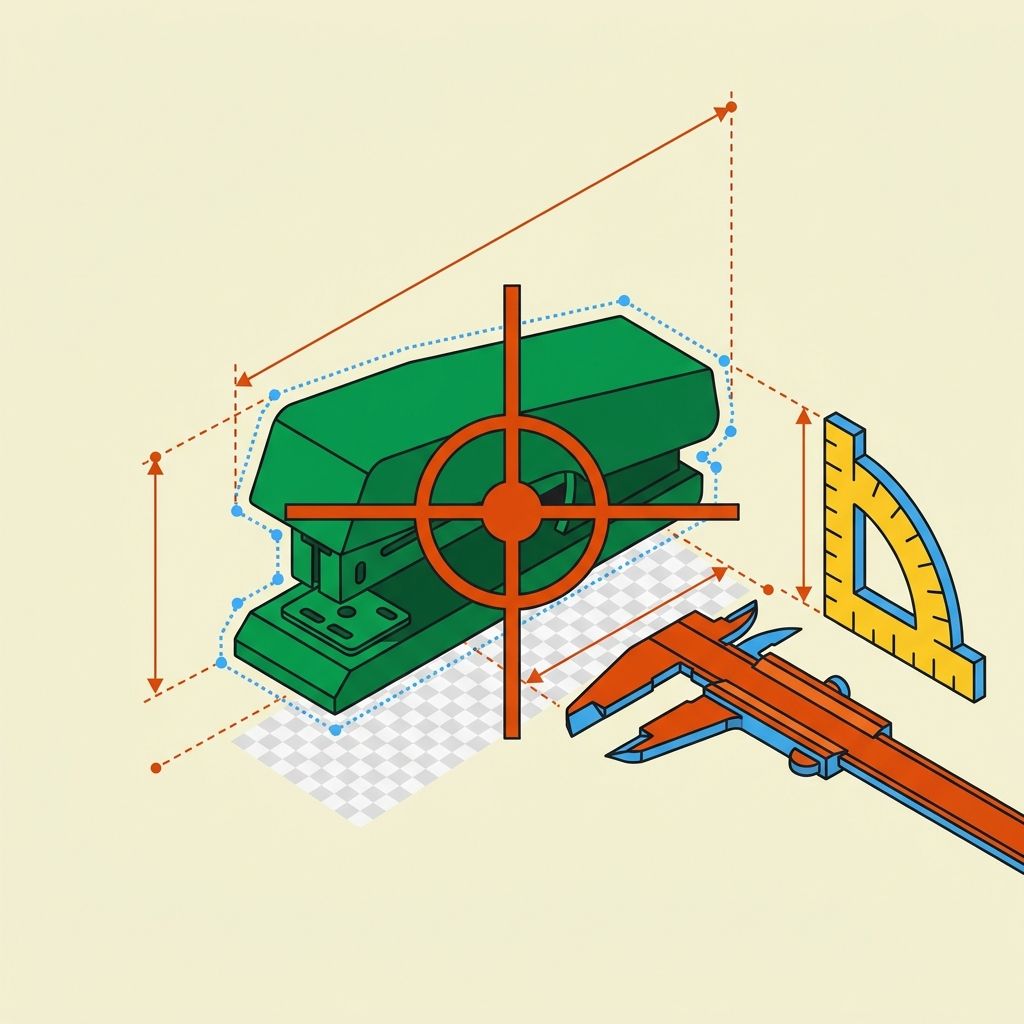
The other thing layouts need is somewhere to crop. Hero banners change width, and a centre crop happily slices through the interesting bit. So we ask the vision model where the weight of the composition sits: not the most interesting detail, but its centre of gravity, nudged toward wherever the object seems to be heading. A stapler-bridge swinging shut to the right should be cropped with a bit more room on the right. If the model call fails, we fall back to the centre of mass of the alpha channel.
Both are cheap to compute once, while the image is in hand, and annoying to retrofit across thousands of illustrations later. So they're just columns on the Illustration record, next to the image, and every illustration arrives layout-ready.
Lesson 5: Build a lab before you tune the prompts
I mentioned earlier we built an Illustration Lab: an internal app that runs 12 fixed sample tasks (one per brand colour) through the entire pipeline and shows the results side by side, streaming in as each finishes. Every batch keeps its token usage and the pass/fail log for every validation attempt, so "did that prompt change help?" has a number attached rather than just a vibe.

I wouldn't have been able to do this without it. If you're building anything generative, build the lab first. Fixed inputs, the full spread of variation, everything visible at once.
Was this all necessary?
No. We build an accounting agent that does finance operations. Nobody is going to buy us for our illustrations, but they do add a little bit of joy and help reinforce our brand story. And that's worth it.